My Drive Overview
My Drive is a feature that allows users to manage their files and folders.
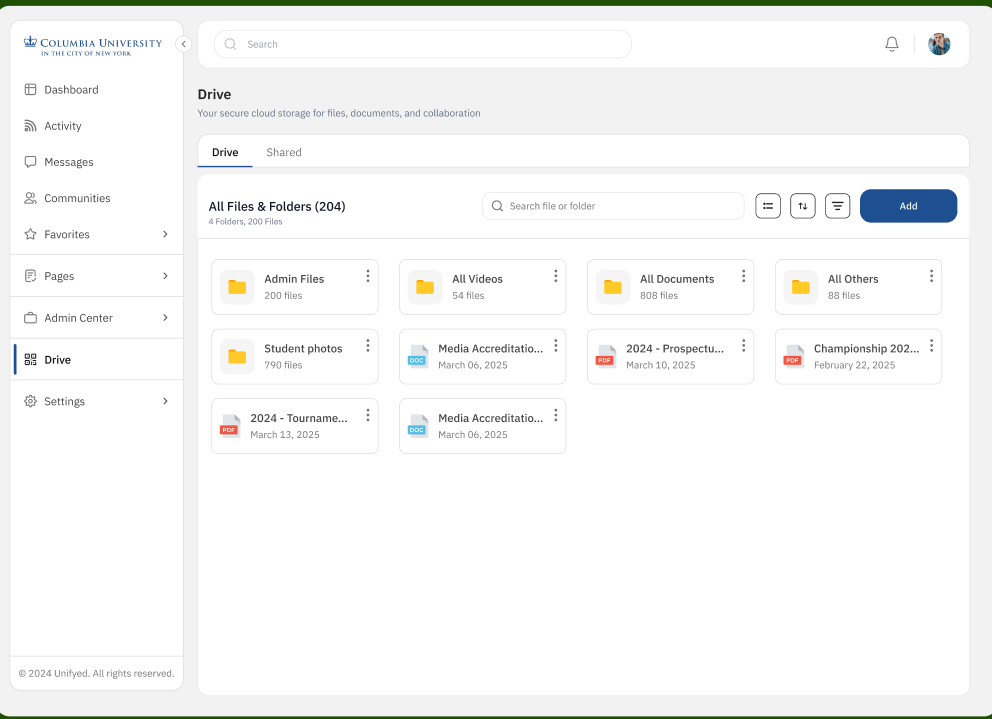
Tile View
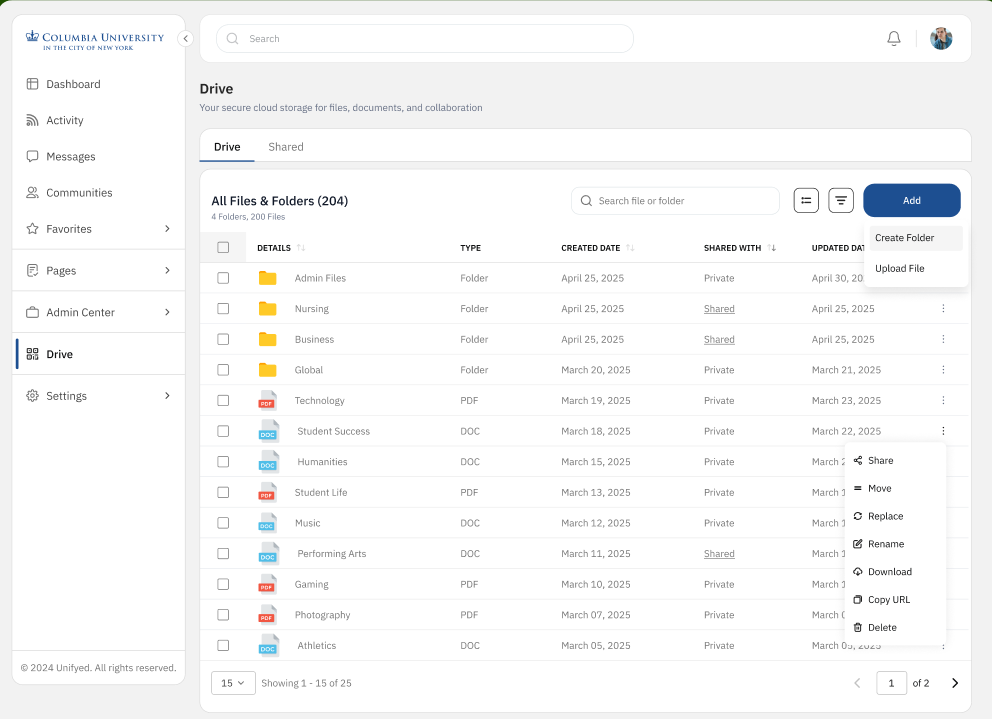
Grid View
Tile View
Grid View
Tile View
Grid View
Tile View
Grid View
Folders and Files Listing 📂
Your Drive displays all your folders and files in a grid view. You can sort these items in the following ways:
- A to Z: Alphabetical order
- Z to A: Reverse alphabetical order
- Latest: Newest items first
- Oldest: Oldest items first
Create Folder and Upload File 🆕
You can add new content to your Drive using the Add menu.
Create a Folder
- Select Create Folder from the Add menu.
- A Create a Folder pop-up will appear.
- Enter a name for your folder.
- Click Create.
Upload a File
- Select Add a File from the Add menu.
- You can drag and drop files into the pop-up or click Upload from Computer to select single or multiple files.
- Only permitted file types are allowed.
- Review your selected files in the pop-up. You can remove any file from the list.
- Click Proceed to upload the files.
Folder and File Actions ⚙️
Every file and folder has a three-dot menu (...) with several actions, depending on your permissions.
Replace (for files only)
This option allows you to replace an existing file with a new version of the same file type.
- Click Replace from the menu.
- The Replace a File pop-up will open for you to upload the new file.
- A "File replaced successfully" message will confirm the update.
Rename
- Click Rename from the menu.
- In the Rename a Folder/File pop-up, enter the new name.
- Click Update.
- A "File/Folder renamed successfully" message will appear.
Download
- Click the Download option to save the selected file(s) to your device.
Copy URL
- Click Copy URL to copy a shareable link to the file.
- A "URL copied successfully" message will be displayed.
Team Contacts
| Role | Name |
|---|---|
| Frontend Developer | Rajesh Kumar |
| Backend Developer | Anish Kumar |
| Designer | Muskan Gupta |
| Product Owner | Sam Stone |
Quick Links
- Detailed Feature List
- API Contract & Endpoints
- Storybook Components & Figma Designs
- Assumptions & Dependencies
- Jira Epic: PX-4400
- Jira Story: PX-4712
Last Updated: 2025-07-10